
You can choose which columns appear in a Process table and change their order. The Table Columns panel is available on the Live Process page, when viewing a single process, on the instances report for a single process, and on the Open Tasks page.

Steps:
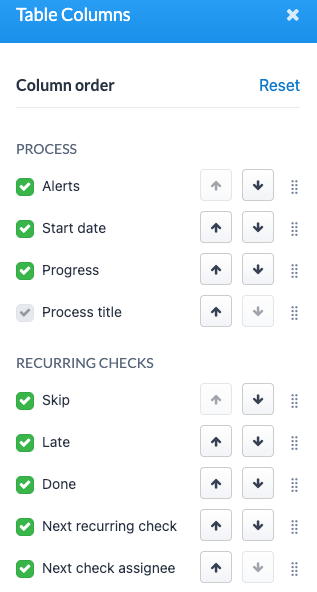
1. Open one of those pages and tap the columns button above the table. The Table Columns panel opens.
2. Tick a column to show it, or untick it to hide it.
3. Drag a column up or down the list to change where it appears in the table. If you use a keyboard, use the up and down buttons beside each column instead.
4. To go back to the standard columns, tap Reset.
NOTE: Weever remembers your column choices in the browser you are using. If you sign in on another device or in another browser, you will see the standard columns until you set them there too.
TIP: Columns that come from a summary form are remembered separately for each process template, so you can set up each template's table the way you need it.
And that's it!
Now you know how to focus and rearrange your views in Process.