---
title: How do I add Job Roles and what do they do?
description: Job Roles are imperative when building Process Templates because they allow administrators to assign people to tasks. Tasks and users are both assigned to Job Roles.
---
[Skip to content](https://support.weeversoftware.com/job-roles#main-content)
[Submit a Support Issue](https://support.weeversoftware.com/kb-tickets/new?hsLang=en)
[](http://weeversoftware.com/)
Open main navigation
Close main navigation
- [Submit a Support Issue](https://support.weeversoftware.com/kb-tickets/new)
How can we help you?
- There are no suggestions because the search field is empty.
1. [Weever Knowledge Base](https://support.weeversoftware.com/?hsLang=en)
2. [Weever Process](https://support.weeversoftware.com/weever-process?hsLang=en)
3. [Using Process Templates](https://support.weeversoftware.com/weever-process?hsLang=en#using-process-templates)
# How do I add Job Roles and what do they do?
## Job Roles are imperative when building Process Templates because they allow administrators to assign people to tasks. Tasks and users are both assigned to Job Roles.
In a Standard Operating Procedure, tasks must be assigned to someone, or they simply won't get done. But assigning tasks to specific users creates a challange: that person may not be on every shift or working every line.
Weever Process solves this with Job Roles. A Job Role defines who is responsible for a task based on function or position, not by name. This keeps work moving through your workflow regardless of who is on the floor that day.
Common examples of Job Roles in Weever Process include:
- Dough Cutter Operator
- PCQI Quality Manager
- Sanitation Technician
- Line 2 Supervisor
- QCC
**Tip:** Job Roles are fully customizable - define them exactly as you like to match your needs.
### How to add Job Roles
### STEP 1:
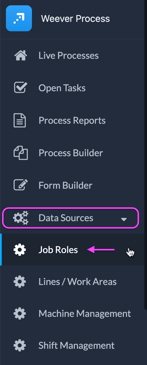
Go to Menu \> Data Sources \> Job Roles.
### STEP 2:
Tap  .
### STEP 3:
Add your new role name.
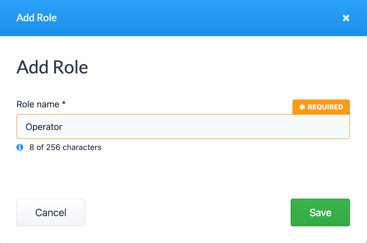
And that's it! Now your Job Role is added and you can assign it to a new or existing user in User Management.
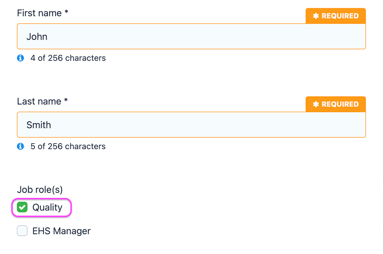
**Note:** Job Roles are different from “Employee Type”, such as Admin, Supervisor, Staff, which provides access permissions. Learn more about Access Permissions here.
### What Job Roles do
Job Roles let you assign tasks in a Process Template to specific groups of users, so the right people are notified and can take action at the right time.
1. When building a Process Template, assign tasks to the appropriate Job Role. Learn more about creating [Process Templates here](https://support.weeversoftware.com/process-template-settings?hsLang=en).
2. When a Live Process is launched, Weever automatically sends email notifications to users whose Job Role matches the assigned task, prompting them to take action.
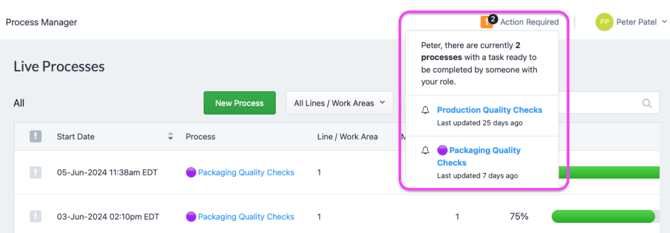
3. Users can filter the Live Process view to see only tasks that require their attention based on their Job Role. A task will appear under Action Required when it falls into one of the following states:
- Up Next - the tasks before it have been marked as complete.
- Due - a repeated task has reached its required completion window.
- Overdue - the task's Grace Period has expired and/or the next repeated instance is now due.
And that's it! You now have a clear understanding of how Job Roles drive task assignment and notifications within Weever Processes.
[](https://weeverapps.com)
Weever Knowledge Base
Copyright © 2026, Weever