---
title: How to Create a QR Code for any page on Weever using Google Chrome
description: Open the page in Google Chrome, right click anywhere that is not a link, and select "Create QR Code for this page."
---
[Skip to content](https://support.weeversoftware.com/how-to-create-a-qr-code-for-any-page-on-weever-using-google-chrome#main-content)
[Submit a Support Issue](https://support.weeversoftware.com/kb-tickets/new?hsLang=en)
[](http://weeversoftware.com/)
Open main navigation
Close main navigation
- [Submit a Support Issue](https://support.weeversoftware.com/kb-tickets/new)
How can we help you?
- There are no suggestions because the search field is empty.
1. [Weever Knowledge Base](https://support.weeversoftware.com/?hsLang=en)
2. [Weever Forms](https://support.weeversoftware.com/weever-forms?hsLang=en)
3. [Pro-Tips](https://support.weeversoftware.com/weever-forms?hsLang=en#pro-tips)
# How to Create a QR Code for any page on Weever using Google Chrome
## Open the page in Google Chrome, right click anywhere that is not a link, and select "Create QR Code for this page."
You can use a QR code to link your frontline staff to specific sections within Weever.

To do this:
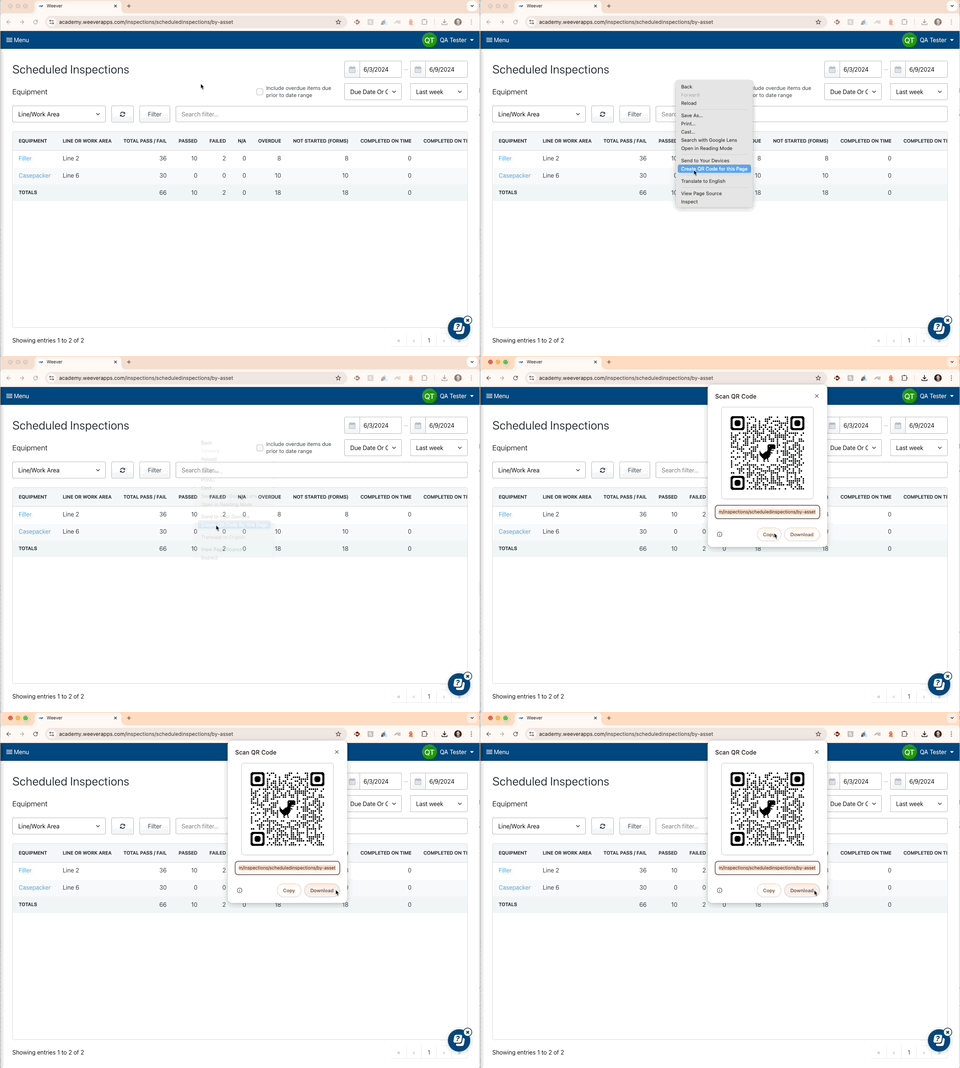
1. Open Google Chrome - Google Chrome is an internet browser. Note: you can download Google Chrome for your system by searching "Download Google Chrome" in your existing browser.
2. Navigate to the Weever page you want to create a QR code for. Note: not every view in Weever creates a new URL so be mindful of that when you are creating QR codes.
3. Right click anywhere on the page where there is not a link or button that does something.
4. A Chrome dropdown will appear with a variety of options
5. Click "Create a QR Code for this page"
6. Copy or Download the QR Code
The downloaded QR Code image looks like this.

Add the QR code to a document and print it to create a quick poster that connects your frontline staff to a specific Weever section. You can use these [quick MS Word Doc templates](https://drive.google.com/drive/folders/1NTKMQMJNgaOZRT667D6xtd1XGRXvU7NN?usp=sharing) if you would like.
**AND THAT'S IT!**
Now you know how to generate a QR Code for any Weever section using Google Chrome.
[](https://weeverapps.com)
Weever Knowledge Base
Copyright © 2026, Weever