---
title: How to add Steps and Tasks to your Process Template
description: "The hierarchy of a Weever Process Template is built on the relationship between Steps and Tasks. Steps act as organizational containers—or \"logical sections\"—that group related activities, such as pre-production hygiene checks or final quality audits\n. Within these Steps, individual Tasks define the specific actions required by the workforce\n.\nTasks are categorized into two primary types:\nForm Tasks: These require the user to interact with a digital form to input specific data points (e.g., hygiene checkpoints, weights, or temperatures)\n.\nInstruction Tasks: These provide visual or procedural guidance without requiring a form submission, such as a directive to \"visually inspect a conveyor belt\"\n.\nA critical component of multi-stage workflows is the ability to update an existing submission\n. This feature allows different users or job roles—such as an operator followed by a supervisor—to interact with the same digital record\n. By selecting this option for approval tasks, the system ensures that signatures are applied to the relevant data rather than generating a new, blank entry\n. Additionally, the system streamlines form design by automatically capturing timestamps for all interactions, removing the need for manual date fields\n."
---
[Skip to content](https://support.weeversoftware.com/how-to-add-steps-and-tasks-to-your-process-template#main-content)
[Submit a Support Issue](https://support.weeversoftware.com/kb-tickets/new?hsLang=en)
[](http://weeversoftware.com/)
Open main navigation
Close main navigation
- [Submit a Support Issue](https://support.weeversoftware.com/kb-tickets/new)
How can we help you?
- There are no suggestions because the search field is empty.
1. [Weever Knowledge Base](https://support.weeversoftware.com/?hsLang=en)
2. [Weever Process](https://support.weeversoftware.com/weever-process?hsLang=en)
3. [Process Builder](https://support.weeversoftware.com/weever-process?hsLang=en#process-builder)
# How to add Steps and Tasks to your Process Template
## The hierarchy of a Weever Process Template is built on the relationship between Steps and Tasks.
### **Key Takeaways**
- The hierarchy of a **Weever Process Template** is built on the relationship between **Steps and Tasks**.
- Steps act as organizational containers—or "logical sections"—that group related activities, such as pre-production hygiene checks or final quality audits.
- Within these Steps, individual Tasks define the specific actions required by the workforce.
Tasks are categorized into two primary types:
1. **Form Tasks**: These require the user to interact with a digital form to input specific data points (e.g., hygiene checkpoints, weights, or temperatures).
2. **Instruction Tasks**: These provide visual or procedural guidance without requiring a form submission, such as a directive to "visually inspect a conveyor belt".
- A critical component of multi-stage workflows is the ability to **update an existing submission**.
- This feature allows different users or job roles—such as an operator followed by a supervisor—to interact with the same digital record.
- By selecting this option for approval tasks, the system ensures that signatures are applied to the relevant data rather than generating a new, blank entry.
- Additionally, the system streamlines form design by **automatically capturing** timestamps for all interactions, removing the need for manual date fields.
### **"How-To" Guide: Building Steps and Tasks**
**Creating Organizational Steps**
1. In the Process Builder, click to add a new **Step**.
2. Provide a clear, logical name (e.g., "Startup Checkpoints") to act as a "bucket" for related work.
**Configuring Tasks**
1. Inside a Step, select "Add Task."
2. **For Data Collection**: Choose a **Form Task** and link it to the specific digital form you previously built.
3. **For Simple Guidance**: Choose an **Instruction Task** to provide a directive that does not require a form submission.
4. **Assign Roles**: Tag the appropriate job roles so the correct staff are notified when it is their turn to work.
**Setting Up Sign-offs and Approvals**
1. Add a new task for the signature or approval.
2. Crucially, select **"Update an existing submission"** instead of starting a new form to ensure the signature is attached to the previous data.
3. Select the specific signature field that must be completed to finalize the task.
**Defining Completion Criteria**
1. Navigate to the **Required Fields** section of the task configuration.
2. Select only the fields that *must* be filled to mark the task as "Done." Fields like "Comments" or "Corrective Actions" can remain optional
### **Step-by-Step Instructions**
**Weever Process** is designed to help you efficiently manage your food safety CGMP compliance requirements by ensuring your operating procedures are followed to the letter. Managers simply build Process Templates that are launched by staff every time a new batch is started. Process Templates consist:
1. The forms that need to be completed
2. Steps & Tasks that define the process
3. Staff roles required to launch given tasks
4. Specific fields required to complete a give task
To create a new Process Template, follow these steps:
### **Step 1:**
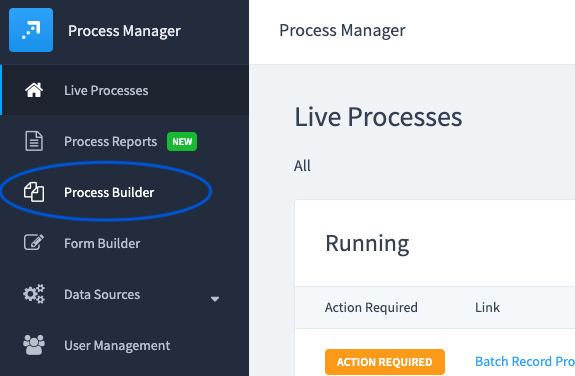
#### Select "Process Builder" in the main menu.
### **Step 2:**
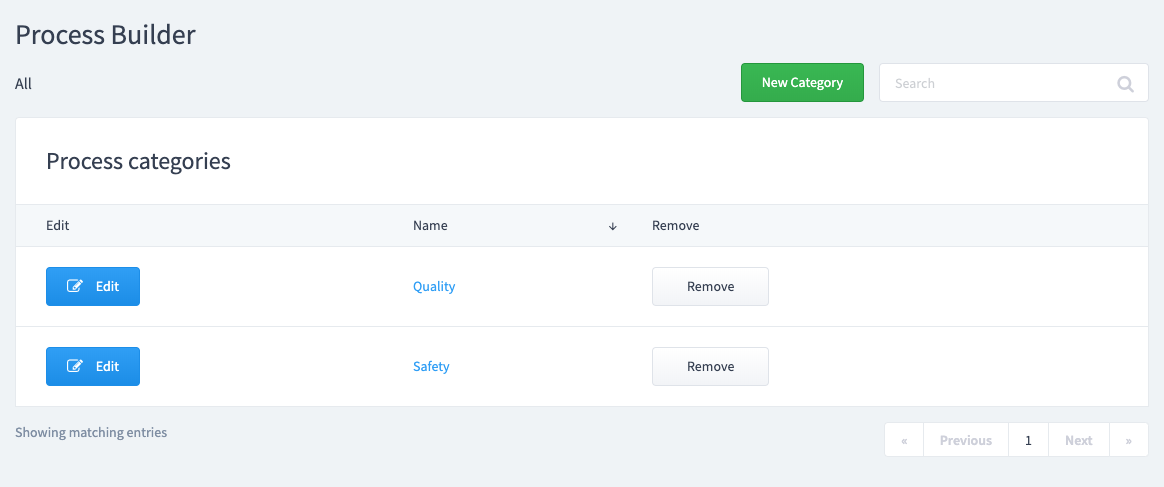
#### Choose a category for your process template.
Process categories allow you to organize your processes. Create a "New Category" or select an existing one.
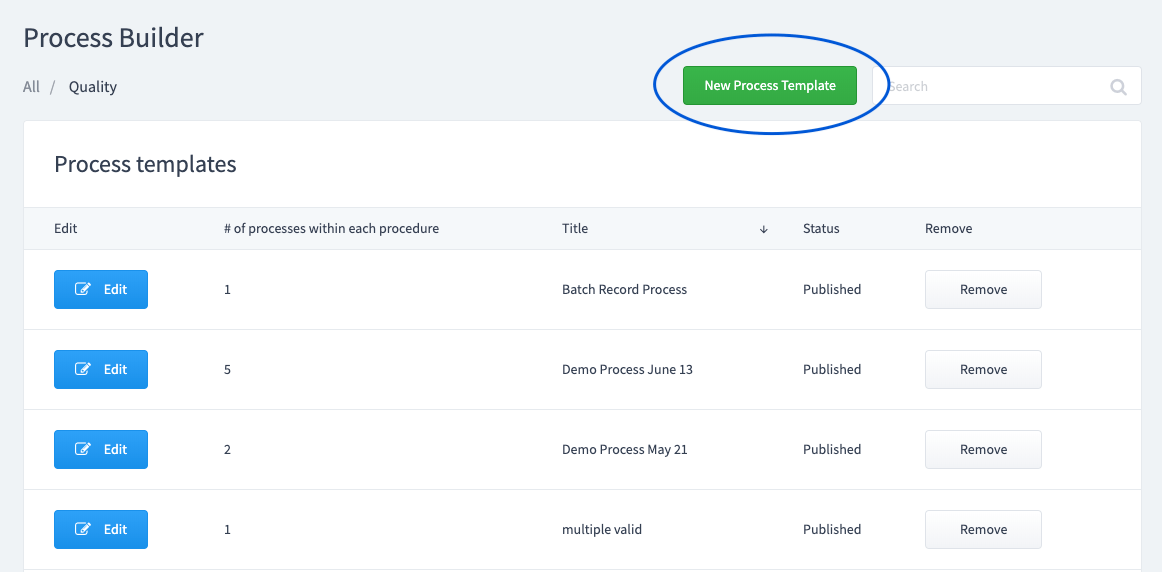
Then tap "New Process Template"
### **Step 3:**
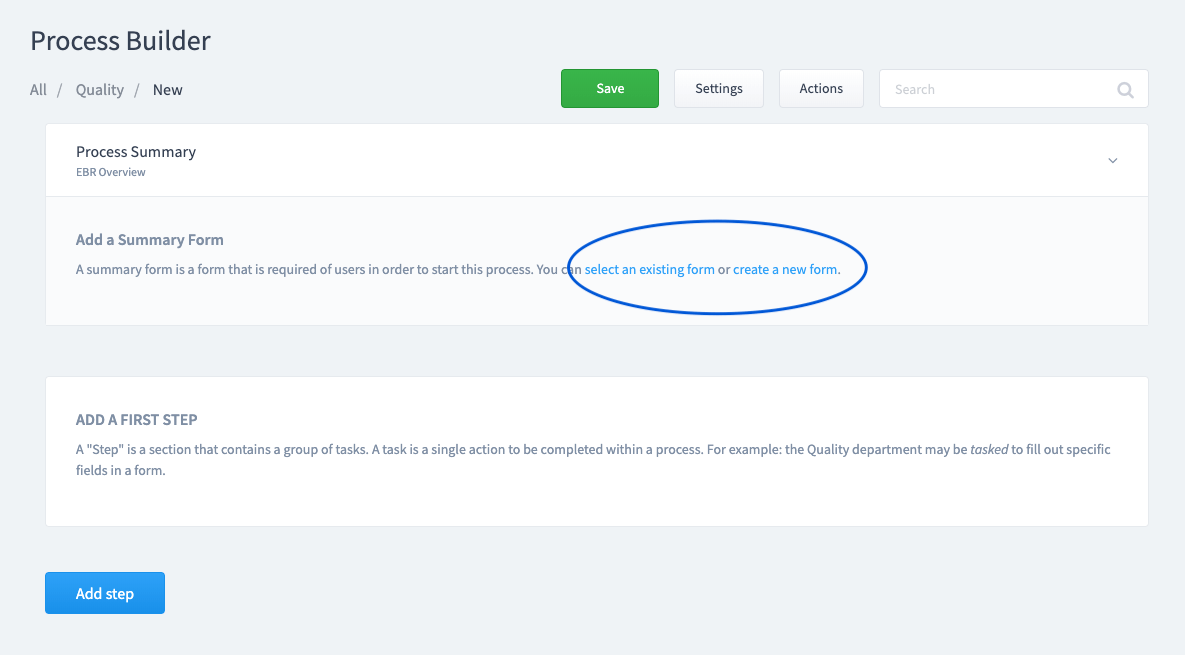
#### Create or select a Summary Form.
This is the information you want to collect when the process is initiated. This information will be associated automatically with any form that is added as a task to this process.
### **Step 4:**
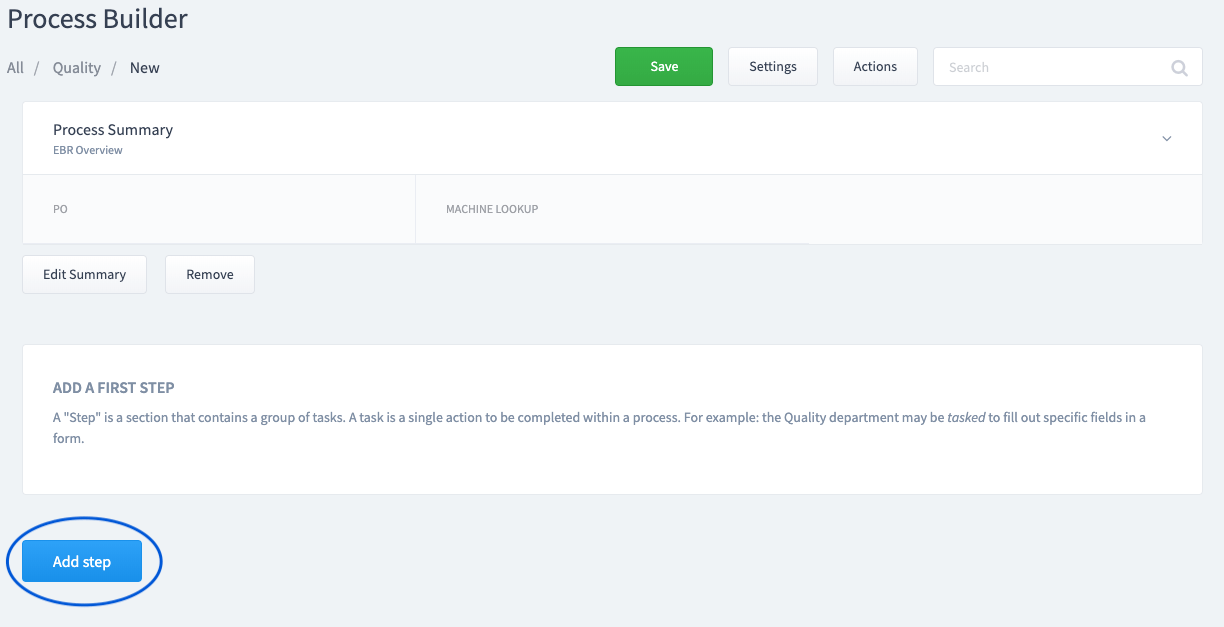
#### Add a Step
A "Step" is a section that contains a group of tasks.
### **Step 5:**
#### Add Tasks
A task is a single action to be completed within a process. For example: the Quality department may be *tasked* to fill out specific fields in a form.
- Tasks can be required multiple times over a time period (repeated).
- Tasks can be associated to roles so only certain staff can initiate the task.
- Tasks can be associated to specific fields within a form.

[](https://weeverapps.com)
Weever Knowledge Base
Copyright © 2026, Weever
```json
{
"@context" : "https://schema.org",
"@type" : "VideoObject",
"caption" : {
"@type" : "MediaObject",
"contentUrl" : "https://support.weeversoftware.com/media-transcripts/212814384910/en.vtt",
"inLanguage" : "en",
"name" : "en Captions"
},
"contentUrl" : "https://5070354.fs1.hubspotusercontent-na1.net/hubfs/5070354/video_assets/212814384910/inherited/web_optimized.mp4",
"dateModified" : "2026-05-13T14:44:25.918Z",
"duration" : "PT3M10S",
"height" : 1080,
"name" : "3.3_ Building Process Templates - Steps & Tasks",
"thumbnailUrl" : "https://5070354.fs1.hubspotusercontent-na1.net/hubfs/5070354/3.3_%20Building%20Process%20Templates%20-%20Steps%20&%20Tasks.mp4/medium.jpg",
"uploadDate" : "2026-05-13T14:43:58.548Z",
"width" : 1920
}
```