---
title: How to add Recurring Tasks to your Process Template
description: "The Weever Process Builder eliminates the need for redundant data entry fields by allowing administrators to set a recurring cadence at the task level\n. This functionality is designed to digitize Standard Operating Procedures (SOPs) that require repeated intervals, such as temperature readings or visual inspections\n. Instead of manual tracking, the system utilizes an automated timer that initiates immediately after the first task is completed\n.\nKey features of this module include the ability to set recurrence in minutes or hours and the application of grace periods to prevent premature alerts\n. To maintain a cohesive data record, subsequent tasks in a recurring sequence are configured to \"update the existing submission\" rather than initiating a new one\n. This creates a \"management by exception\" environment where supervisors only receive real-time alerts on their dashboards when a task has officially become overdue, allowing for immediate corrective action"
---
[Skip to content](https://support.weeversoftware.com/how-to-add-recurring-tasks-to-your-process-template#main-content)
[Submit a Support Issue](https://support.weeversoftware.com/kb-tickets/new?hsLang=en)
[](http://weeversoftware.com/)
Open main navigation
Close main navigation
- [Submit a Support Issue](https://support.weeversoftware.com/kb-tickets/new)
How can we help you?
- There are no suggestions because the search field is empty.
1. [Weever Knowledge Base](https://support.weeversoftware.com/?hsLang=en)
2. [Weever Process](https://support.weeversoftware.com/weever-process?hsLang=en)
3. [Process Builder](https://support.weeversoftware.com/weever-process?hsLang=en#process-builder)
# How to add Recurring Tasks to your Process Template
## The Weever Process Builder eliminates the need for redundant data entry fields by allowing administrators to set a recurring cadence at the task level. This functionality is designed to digitize Standard Operating Procedures (SOPs) that require repeated intervals, such as temperature readings or visual inspections.
### **Key Takeaways**
- The **Weever Process Builder** eliminates the need for redundant data entry fields by allowing administrators to set a recurring cadence at the task level.
- Instead of manual tracking, the system utilizes an automated timer that initiates immediately after the first task is completed.
- Key features of this module include the ability to set recurrence in minutes or hours and the application of **grace periods** to prevent premature alerts.
- To maintain a cohesive data record, subsequent tasks in a recurring sequence are configured to "update the existing submission" rather than initiating a new one.
- This creates a "management by exception" environment where supervisors only receive real-time alerts on their dashboards when a task has officially become overdue, allowing for immediate corrective action.
### **"How-To" Guide: Setting Up Recurring Tasks**
1. **Identify the Requirement:** Determine which data points need to be captured repeatedly (e.g., every 30 minutes).
2. **Create the Task:** In the Process Builder, add a new task and connect it to your form.
3. **Set the Cadence:** Navigate to the **Recurring** section of the task settings and enter the required duration in minutes or hours.
4. **Add a Buffer:** Enter a **Grace Period** if you want to allow extra time before a Process Alert is generated.
5. **Chain the Tasks:** For every task following the initial check, select the option to **"update the existing submission"** to ensure all data is captured within the same record.
6. **Define Requirements:** Select the specific fields that must be completed for each recurring interval to be marked as "Done"
To set up a task as a recurring check, simply follow these steps:
### Step 1:
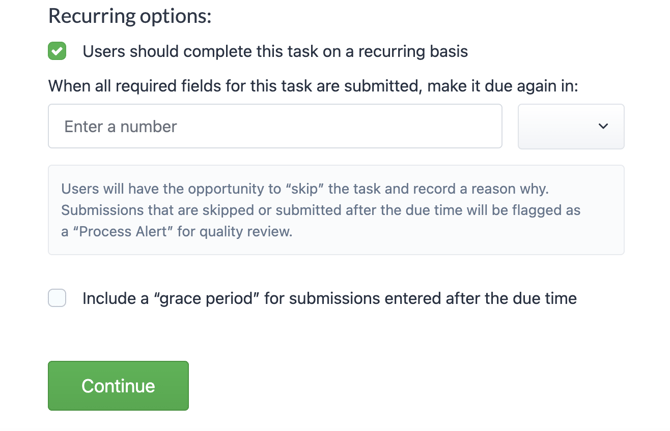
Within the Task, scroll to the very bottom and you will see **Recurring Options:**

Tap on this and it will show more options for the frequency of Recurring Task:
### **Step 2:**
Specify the duration in minutes or hours for the task completion frequency. Additionally, you have the option to include a grace period:
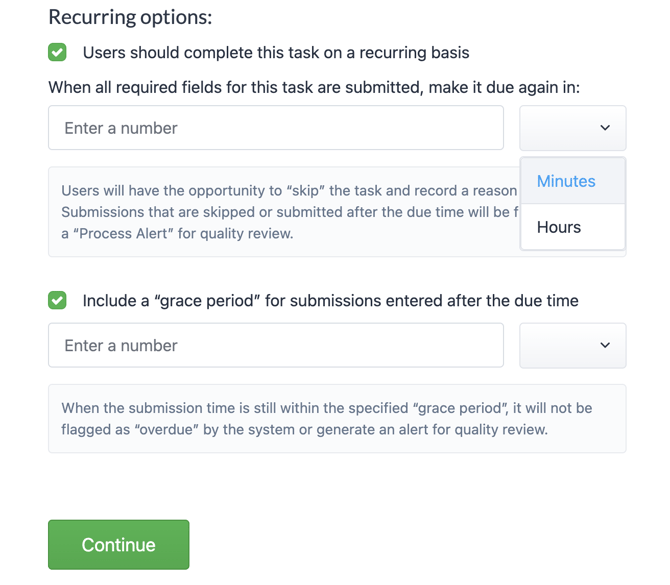
The grace period provides users with extra time to finish the task within the scheduled timeframe. For instance, if a recurring Quality Check task is set for every 30 minutes with a 5-minute grace period, users will have an additional 5 minutes to complete the check at the 30-minute mark.
[](https://weeverapps.com)
Weever Knowledge Base
Copyright © 2026, Weever
```json
{
"@context" : "https://schema.org",
"@type" : "VideoObject",
"caption" : {
"@type" : "MediaObject",
"contentUrl" : "https://support.weeversoftware.com/media-transcripts/212814285904/en.vtt",
"inLanguage" : "en",
"name" : "en Captions"
},
"contentUrl" : "https://5070354.fs1.hubspotusercontent-na1.net/hubfs/5070354/video_assets/212814285904/inherited/web_optimized.mp4",
"dateModified" : "2026-05-13T15:27:11.390Z",
"duration" : "PT2M46S",
"height" : 1080,
"name" : "3.4_ Building Process Templates - Recurring Tasks",
"thumbnailUrl" : "https://5070354.fs1.hubspotusercontent-na1.net/hubfs/5070354/3.4_%20Building%20Process%20Templates%20-%20Recurring%20Tasks.mp4/medium.jpg",
"uploadDate" : "2026-05-13T15:26:50.926Z",
"width" : 1920
}
```