---
title: How to add Numbers and Calculations using the Form Builder
description: "The Weever Form Builder provides specialized tools for handling numerical data and complex arithmetic. Number Check fields serve as a critical validation tool by allowing administrators to define specific minimum and maximum acceptable ranges. If an operator enters a value outside of these parameters, the system provides an immediate alert; if that value is submitted, a Process Alert is generated for further review.\nBeyond simple data entry, the system supports Automated Calculations to improve accuracy and operational efficiency. By first establishing standard number fields for raw data (such as sample measurements), administrators can then configure calculations to determine deviations, sums, and averages. These calculations are dynamic, meaning the output of one can be used as a variable in subsequent calculations, facilitating sophisticated multi-step data processing."
---
[Skip to content](https://support.weeversoftware.com/how-to-add-numbers-and-calculations-using-the-form-builder#main-content)
[Submit a Support Issue](https://support.weeversoftware.com/kb-tickets/new?hsLang=en)
[](http://weeversoftware.com/)
Open main navigation
Close main navigation
- [Submit a Support Issue](https://support.weeversoftware.com/kb-tickets/new)
How can we help you?
- There are no suggestions because the search field is empty.
1. [Weever Knowledge Base](https://support.weeversoftware.com/?hsLang=en)
2. [Weever Process](https://support.weeversoftware.com/weever-process?hsLang=en)
3. [Form Builder](https://support.weeversoftware.com/weever-process?hsLang=en#form-builder)
# How to add Numbers and Calculations using the Form Builder
## The Weever Form Builder provides specialized tools for handling numerical data and complex arithmetic.
### **Key Takeaways**
- The Weever Form Builder provides specialized tools for handling numerical data and complex arithmetic.
- **Number Check fields** serve as a critical validation tool by allowing administrators to define specific minimum and maximum acceptable ranges.
- If an operator enters a value outside of these parameters, the system provides an immediate alert; if that value is submitted, a **Process Alert** is generated for further review.
- Beyond simple data entry, the system supports **Automated Calculations** to improve accuracy and operational efficiency.
- By first establishing standard number fields for raw data (such as sample measurements), administrators can then configure calculations to determine **deviations, sums, and averages**.
- These calculations are dynamic, meaning the output of one can be used as a variable in subsequent calculations, facilitating sophisticated multi-step data processing.
#### **"How-To" Guide: Managing Numbers and Calculations**
**Configuring Number Checks**
1. Add a **Number Check** field to your form.
2. In the field settings, input your required **minimum and/or maximum values**.
3. The system will now automatically warn users if an entry is out of range and trigger a **Process Alert** upon submission of non-compliant data.
**Creating Automated Calculations**
1. **Add Input Fields:** First, create the standard Number fields where the operator will enter raw data (e.g., "Sample 1 Weight").
2. **Add a Calculation Field:** Select the **Calculation Result** field type.
3. **Define the Logic:** Choose the mathematical operation (Sum, Average, or Deviation).
4. **Select Variables:** Choose the specific Number fields created in step 1 to include in the math.
5. **Chain Calculations:** To perform complex math, create a new calculation and select a previously created **Calculation Result** as one of your data sources.
### Step-by-Step Guide
#### STEP 1
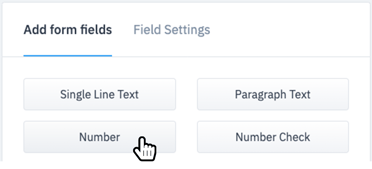
Navigate to Form Builder and create or edit the form you would like to add your calculation to. Add two or more number fields to your form and update the labels.
#### STEP 2
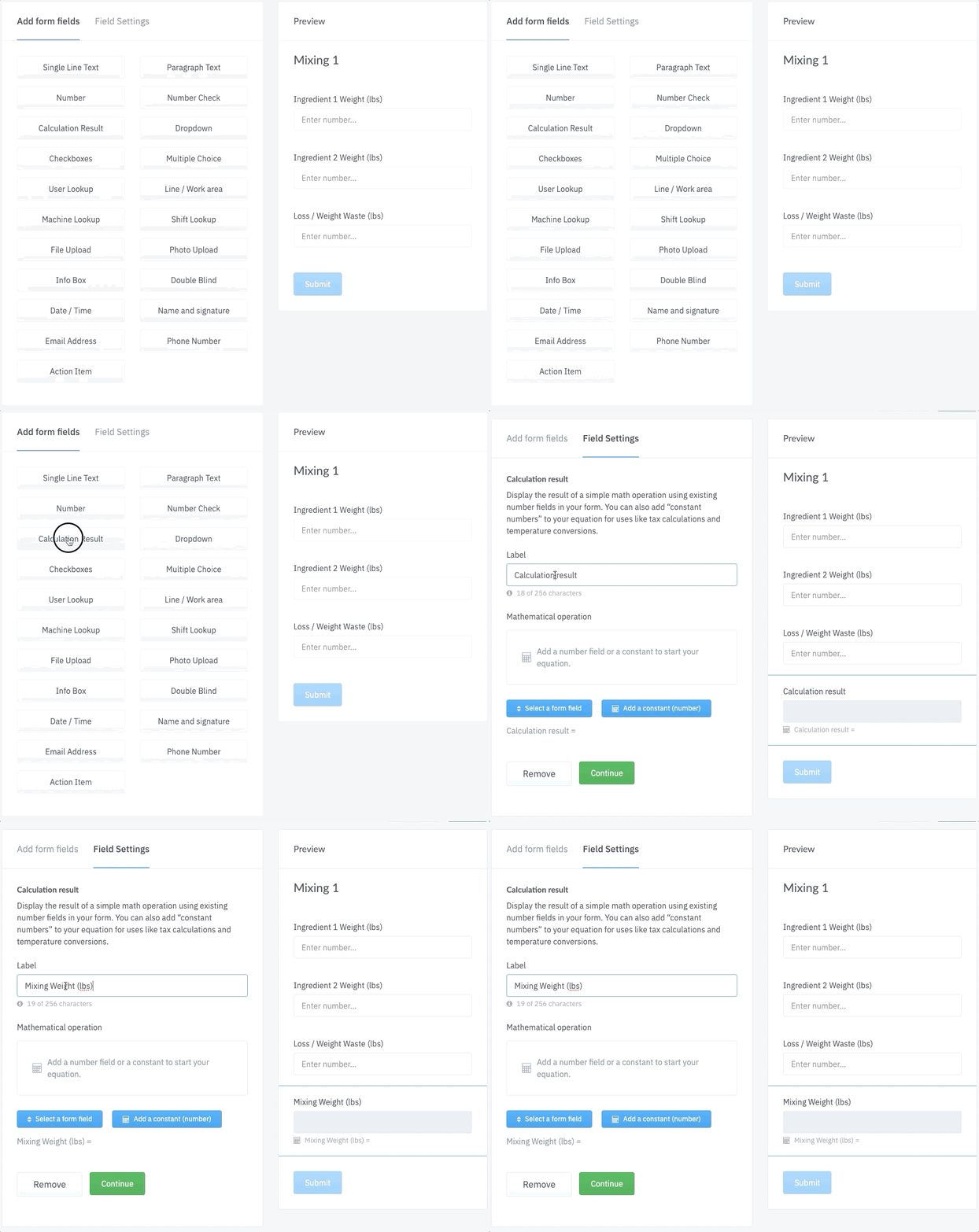
Add a Calculation Result Field to your form and update the label.
#### STEP 3
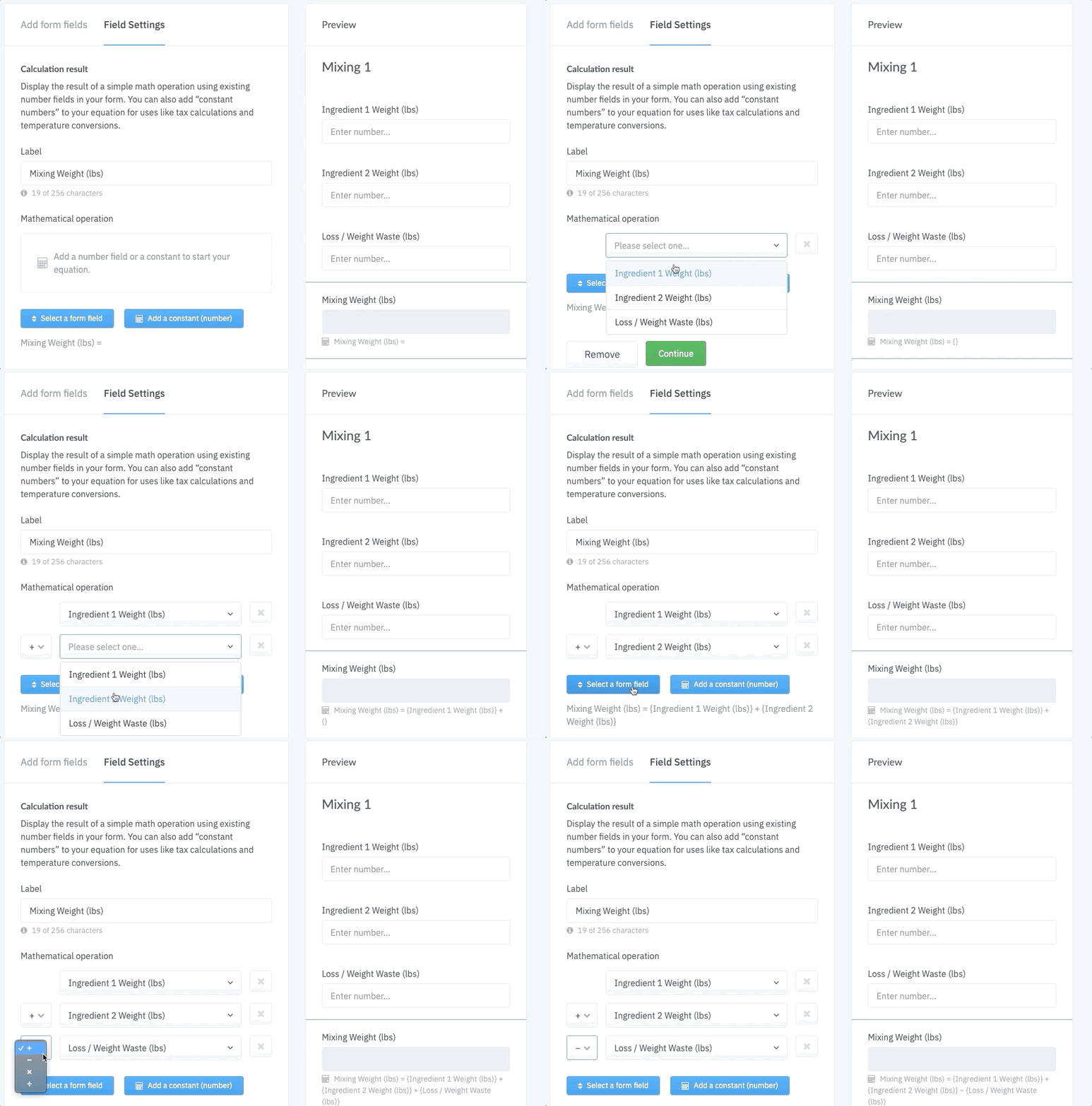
Build out your calculation by tapping the "Select a form field" button, choosing the number fields you would like to be included in the calculation, and updating the operation dropdown to choose between add, subtract, multiple, or divide.
#### STEP 4
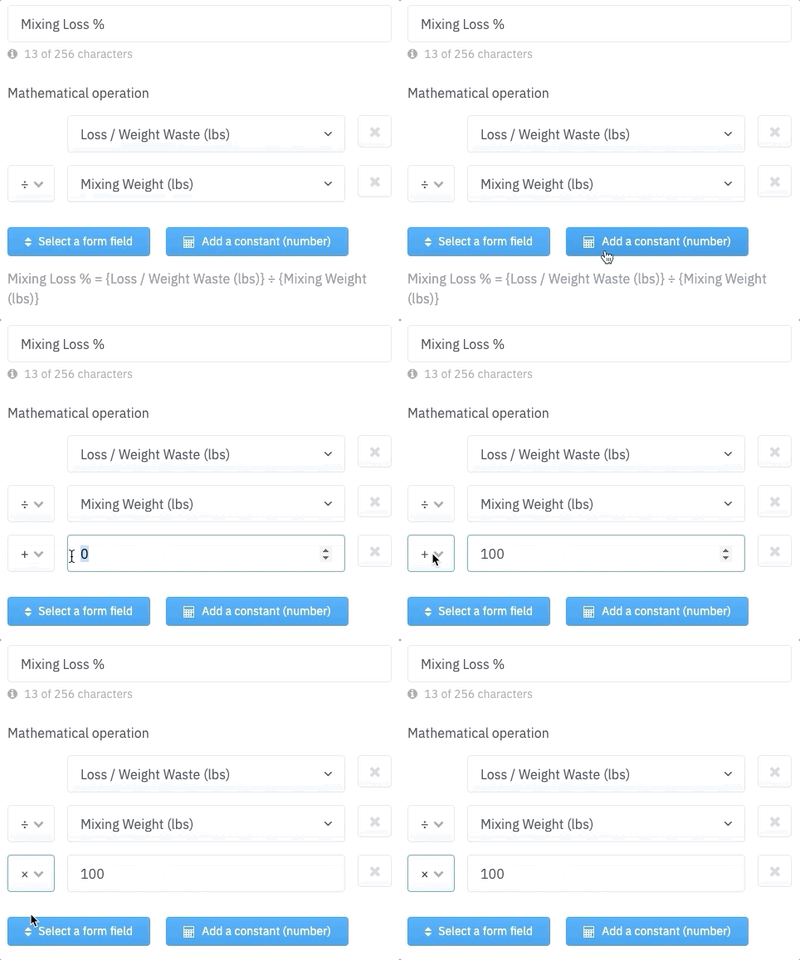
You can also add constants by tapping the "add a constant (number)" button and adding the constant you need in your calculation.
#### And that's it!
Now you can start using your new form with built in calculations in your processes.
[](https://weeverapps.com)
Weever Knowledge Base
Copyright © 2026, Weever
```json
{
"@context" : "https://schema.org",
"@type" : "VideoObject",
"caption" : {
"@type" : "MediaObject",
"contentUrl" : "https://support.weeversoftware.com/media-transcripts/212807595940/en.vtt",
"inLanguage" : "en",
"name" : "en Captions"
},
"contentUrl" : "https://5070354.fs1.hubspotusercontent-na1.net/hubfs/5070354/video_assets/212807595940/inherited/web_optimized.mp4",
"dateModified" : "2026-05-13T13:31:51.977Z",
"duration" : "PT1M54S",
"height" : 1080,
"name" : "2.6_ Digitizing Forms - Numbers and Calculations",
"thumbnailUrl" : "https://5070354.fs1.hubspotusercontent-na1.net/hubfs/5070354/2.6_%20Digitizing%20Forms%20-%20Numbers%20and%20Calculations.mp4/medium.jpg",
"uploadDate" : "2026-05-13T13:31:34.660Z",
"width" : 1920
}
```