---
title: How do I close a Process and what happens to closed processes?
description: To close a Live Process, go to the process, click on the “Actions” dropdown and click “Close process”. You can access closed processes in the "Process Reports" section.
---
[Skip to content](https://support.weeversoftware.com/how-do-i-close-a-process-and-what-happens-to-closed-processes#main-content)
[Submit a Support Issue](https://support.weeversoftware.com/kb-tickets/new?hsLang=en)
[](http://weeversoftware.com/)
Open main navigation
Close main navigation
- [Submit a Support Issue](https://support.weeversoftware.com/kb-tickets/new)
How can we help you?
- There are no suggestions because the search field is empty.
1. [Weever Knowledge Base](https://support.weeversoftware.com/?hsLang=en)
2. [Weever Process](https://support.weeversoftware.com/weever-process?hsLang=en)
3. [Using Process Templates](https://support.weeversoftware.com/weever-process?hsLang=en#using-process-templates)
# How do I close a Process and what happens to closed processes?
## Closing Live Processes is a good habit because it keeps your "Live Processes" section clear, so teams only see work that still needs attention. You can close processes in two ways: manually or automatically.
#### [New to Weever? See how Weever helps manufacturers digitize and automate frontline operations →](https://weeversoftware.com)
### Option 1: Close a process manually
1. Go to "**Live Processes**" view.
2. **Open the process you want to close.**
3. **Click the "**Actions**" button at the top the process.**
4. Click "**Close process".**
****
Please note that if all the tasks are not “Done”, the platform will ask for you to confirm that you would like to close the process. If all the task are completed, the modal will not be displayed and the process will close.
### Option 2: Close processes automatically
You can set processes to close automatically once **all tasks are marked "Done" (or "Not required")**. This means no one has to remember to close them, which is helpful when many processes run at the same time.
**How to turn on automatic closing:**
1. Go to **Process Builder** and select your **Process Category**.
2. Find the process template you want to update and click "**Edit**".
3. Click the "**Settings**" button at the top of the process.
4. Turn on the "**Auto-close process when complete**" toggle.
5. Click "**Save**".

### What happens when a Live Process is closed?
When you close a process, it will be removed from the “Live Processes” section. **You can find a record of the closed process in the “Process Reports” section.** To access closed process, do the following:
1\. Go to “Process Reports”
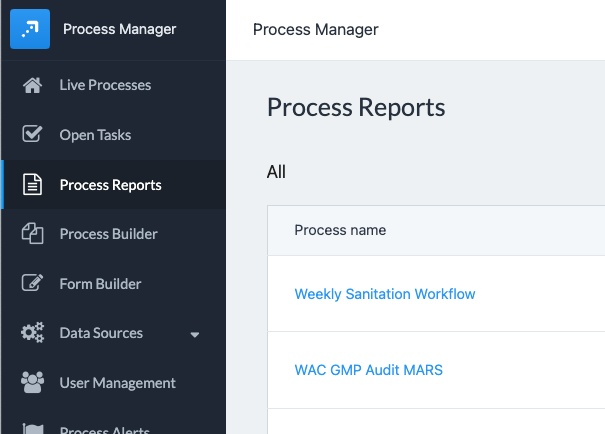
2\. Find the process by scrolling or searching.

3\. Toggle the filters to find the closed Live Process you would like to review.

4\. Click “View Process” to view the closed Live Process.

From here, you can download or email a PDF of the complete activity history using the “Actions” drop down. You can also re-open the process if you have administrator access by clicking the “Re-open Process” link in the top orange notification band or in the "Actions" dropdown menu.

Please note that any Process Alerts that are associated to closed Live Processes are NOT removed from the “Process Alerts” section.
**And that’s it!** Now you can close process and access closed process reports.
#### Interested in learning more about Weever? [Book a demo](https://weeversoftware.com/book-a-demo)
[](https://weeverapps.com)
Weever Knowledge Base
Copyright © 2026, Weever