
Understanding Compliance Badges
Live Processes Page
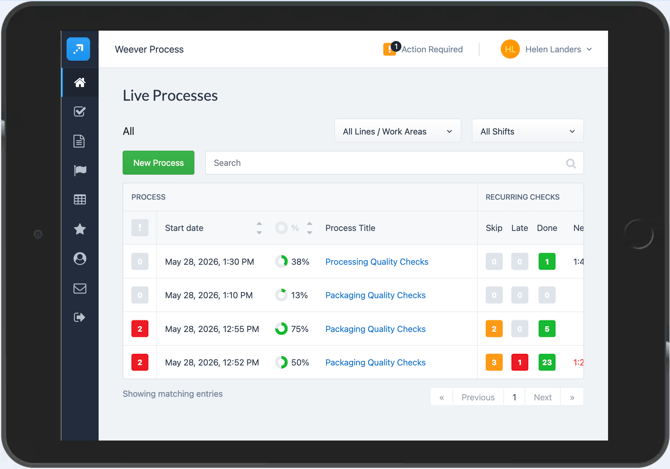
Compliance Badges surface everything reviewers need to know before they tap into a single task or open the process. This gives reviewers the full compliance picture immediately, without needing to open individual tasks. No digging required.
1. Open the Live Process view. For each process, the Compliance Badges displayed are: Process Alerts, Skipped Checks, Late Checks, and Completed Checks. We've also relocated and condensed the total completion percentage for each process.
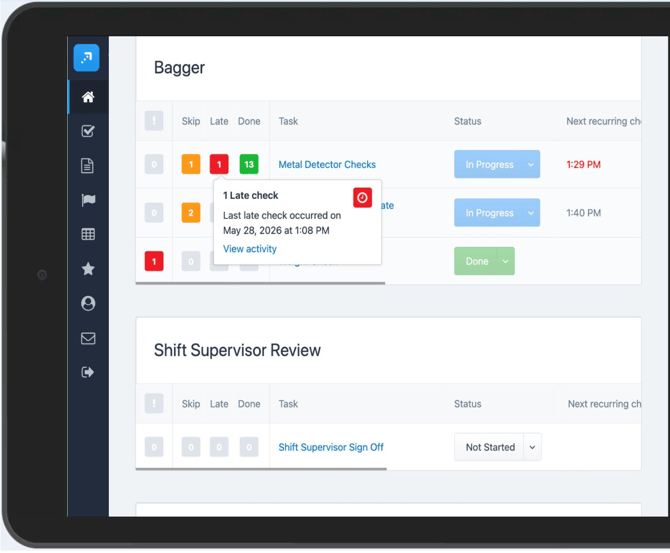
2. Hover over (desktop) or tap (mobile) any badge with a value to see additional detail, including when the event occurred and a View Activity link that takes you directly to the relevant entry.
Open Process Page
1. When viewing a live process, the same badges appear on the left side of each task, giving you the compliance status before reviewing.
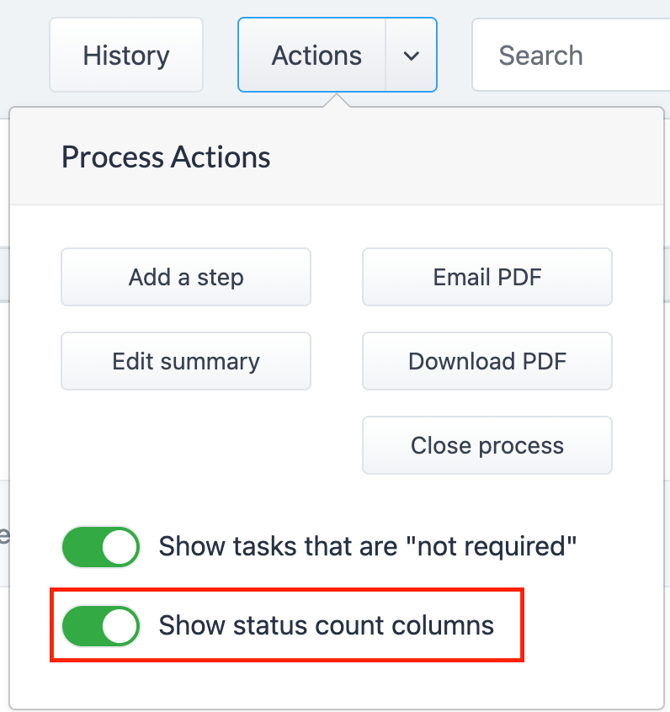
2. If you prefer not to see badges in the open process view, select the Actions tab at the top right of the page and toggle status count column off.
Open Tasks Page
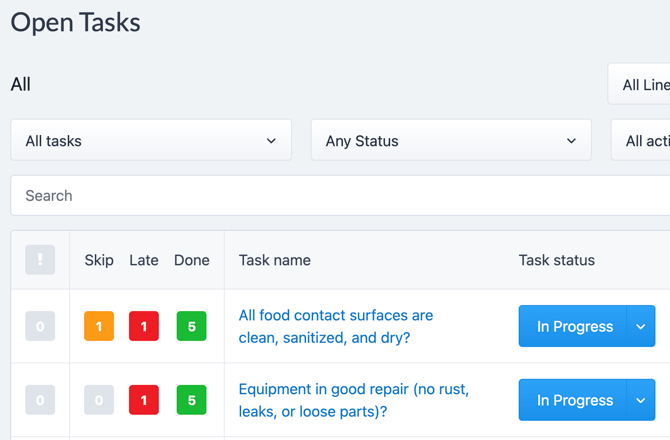
1. Compliance badge data is also available in the Open Tasks view, where quality teams can filter by specific check types. For example, pulling a cross-process summary of all Metal Detector Checks to quickly assess compliance across lines and shifts.
NOTE: Compliance Badges are available to Supervisors and Admins only.
Filtering Activity History
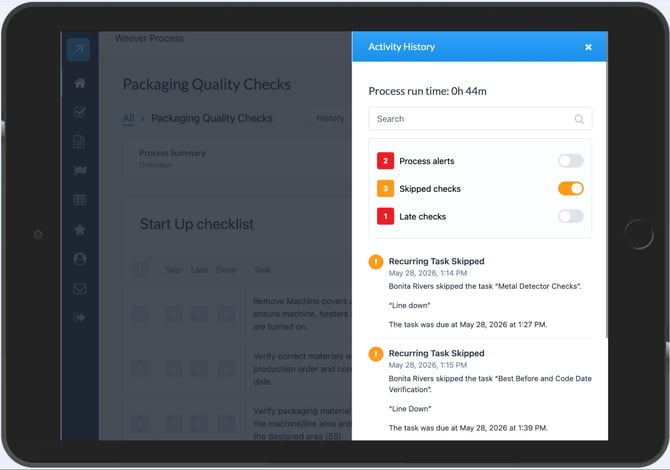
1. From within any process, tap the History button to open the Activity History.
2. Review the issue counts displayed at the top of the feed, these show the total number of Process Alerts, Skipped Checks, and Late Checks at a glance.
3. Use the dedicated toggle for each issue type to filter the feed and show only the category you're investigating.
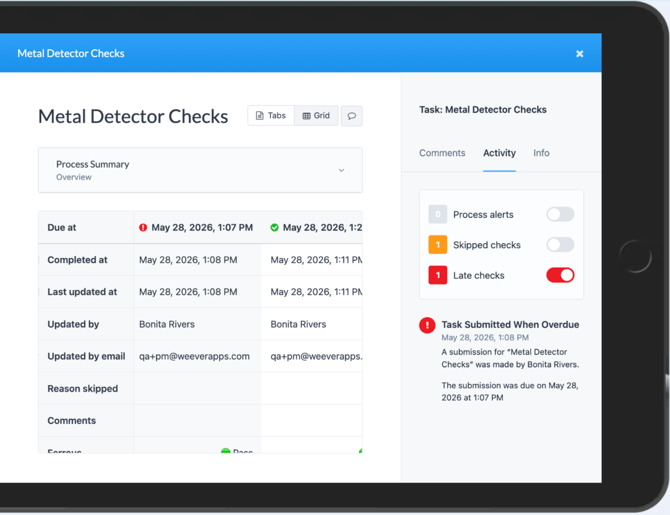
4. To filter at the task level, open a specific task (e.g. Metal Detector Checks) and apply the same issue-type filters to that task's individual activity feed.
NOTE: The History button provides a direct path to the Activity History without extra navigation steps. No need to dig through the process menu.
TIP: Use task-level filtering when you already know which check is the problem. Use process-level filtering when you need to triage first.
And thats it!
Reviewers can now see the full compliance picture before opening a single task and jump straight to the issues that need attention. Faster sign-offs, stronger accountability.