---
title: How do I clear my browser cache history?
description: If you are experiencing issues with Weever, or updated data is not being populated, clearing your cache can usually solve the issue. Heres an article on how to do that in most browsers.
---
[Skip to content](https://support.weeversoftware.com/clear-browser-cache#main-content)
[Submit a Support Issue](https://support.weeversoftware.com/kb-tickets/new?hsLang=en)
[](http://weeversoftware.com/)
Open main navigation
Close main navigation
- [Submit a Support Issue](https://support.weeversoftware.com/kb-tickets/new)
How can we help you?
- There are no suggestions because the search field is empty.
1. [Weever Knowledge Base](https://support.weeversoftware.com/?hsLang=en)
2. [Troubleshooting](https://support.weeversoftware.com/troubleshooting?hsLang=en)
# How do I clear my browser cache history?
## If you are experiencing issues with Weever, or updated data is not being populated, clearing your cache can usually solve the issue. Heres an article on how to do that in most browsers.
---
#### Quick Navigation Links (select the browser and device you are using)
Chrome from a: [Computer](https://support.weeversoftware.com/clear-browser-cache#Chrome-comp) / [iPad or iPhone](https://support.weeversoftware.com/clear-browser-cache#Chrome-ios) / [Android](https://support.weeversoftware.com/clear-browser-cache#Chrome-droid)
Microsoft Edge from a: [Computer](https://support.weeversoftware.com/clear-browser-cache#Edge-comp) / [iPad or iPhone](https://support.weeversoftware.com/clear-browser-cache#Edge-ios) / [Android](https://support.weeversoftware.com/clear-browser-cache#Edge-droid)
Safari from a: [Computer](https://support.weeversoftware.com/clear-browser-cache#Safari-comp) / [iPad or iPhone](https://support.weeversoftware.com/clear-browser-cache#Safari-ios)
---
### Chrome
**From a desktop computer/laptop:**
1. On your computer, open Chrome.
2. At the top right, click More .
3. Click **More tools** 
4. Select **Clear browsing data**.
5. At the top, choose a time range. To delete everything, select **All time**.
6. Check the boxes for "Cookies and other site data" and "Cached images and files".
7. Click **Clear data**.
#### Alternative method for Chrome
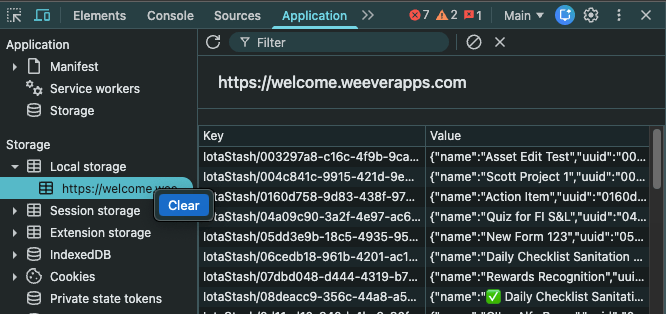
1. Right Click on Dashboard page and select Inspect
2. On the developer page select the Application tab at the top
3. On the left side, expand the Local storage section
4. Right click on the URL and select the **Clear** option
**From an iPad/iPhone:**
1. On your iPhone or iPad, open the Chrome app .
2. At the top right, tap More .
3. Tap **History** 
4. Select **Clear browsing data**.
5. At the top, choose a time range. To delete everything, select **All time**.
6. Make sure there’s a check mark next to "Cookies, Site Data," and "Cached Images and Files."
7. Tap **Clear browsing data**.
**From an Android phone/tablet:**
1. On your Android phone or tablet, open the Chrome app .
2. At the top right, tap More .
3. Tap **History** 
4. Select **Clear browsing data**.
5. At the top, choose a time range. To delete everything, select **All time**.
6. Next to "Cookies and site data" and "Cached images and files," check the boxes.
7. Tap **Clear data**.
---
### Microsoft Edge
**From a desktop computer/laptop:**
1. Open Microsoft Edge.
2. In the upper-right corner of the browser, select **Settings** and more 
3. Select **Settings**, then click on **Privacy & services**.
4. Under *Clear Browsing Data*, select **Choose what to clear**.
5. Check **Cached images and files** and **Cookies and other site data, **then select **Clear now**.
6. Restart the browser.
**From an iPad/iPhone:**
1. Open the Microsoft Edge browser on your iPhone.
2. Tap the three horizontal dots in the centre on the bottom bar.

3. Select “Settings” from the menu that pops up.

4. Tap on “Privacy and Security.”
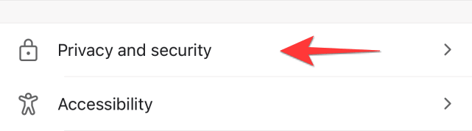
5. Select “Clear Browsing Data.”

6. Tap “Time Range” and choose “All Time.” Select the items you want to remove from Microsoft Edge.
**From an Android phone/tablet:**
1. Open the Edge app, tap **Menu** (the three dots at the bottom of the screen), and select **Settings**.
2. Tap **Privacy and Security** \> **Clear browsing data**.
3. Select **Cached images and files**, then tap **Clear data** to delete your Microsoft Edge cache on Android.
---
### Safari
**From an Apple desktop/laptop:**
1\. Open the Safari web browser
2\. Select the **History** tab at the top
3\. At the bottom of that tab, select **Clear History...**
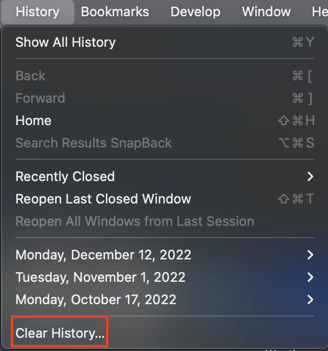
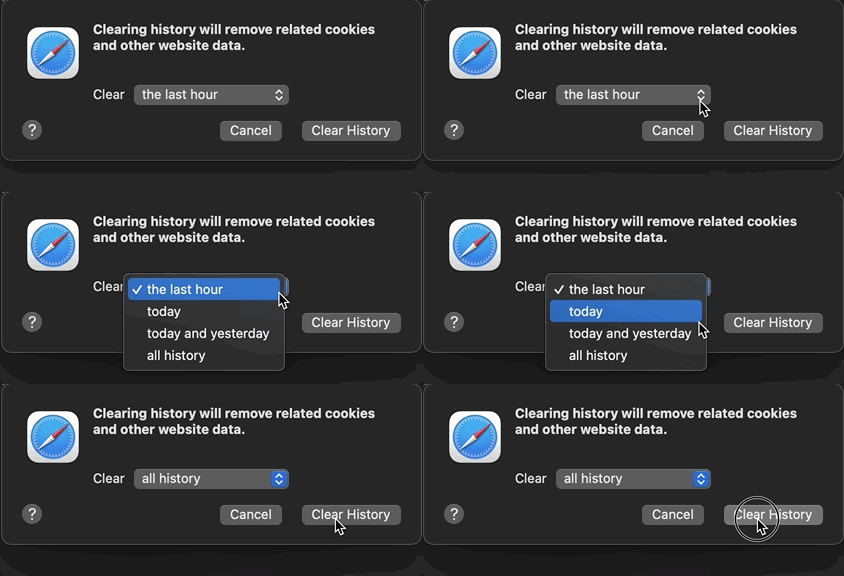
4\. A box pops up with a choice to clear the last hour, today, today and yesterday, or all history. Choose your time frame and click the **Clear History** button.
****
**From an iPad/iPhone:**
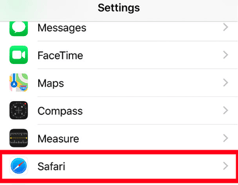
1\. Open the **Settings** app on your device 
2\. Scroll down until you see the **Safari** option and select it
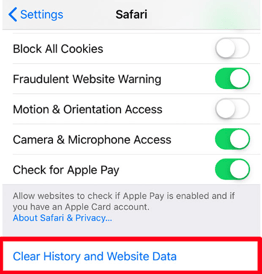
3\. Scroll down again and select **Clear History and Website Data**
****
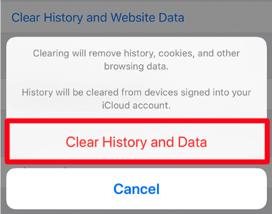
4\. The option to **Clear History and Data** will appear at the bottom, select it to clear your cache.
[](https://weeverapps.com)
Weever Knowledge Base
Copyright © 2026, Weever