---
title: How can I add buttons for hyperlinks in my forms?
description: Add buttons to link URLs, SOPs or internal documents from your forms in Weever
---
[Skip to content](https://support.weeversoftware.com/buttons#main-content)
[Submit a Support Issue](https://support.weeversoftware.com/kb-tickets/new?hsLang=en)
[](http://weeversoftware.com/)
Open main navigation
Close main navigation
- [Submit a Support Issue](https://support.weeversoftware.com/kb-tickets/new)
How can we help you?
- There are no suggestions because the search field is empty.
1. [Weever Knowledge Base](https://support.weeversoftware.com/?hsLang=en)
2. [Weever Forms](https://support.weeversoftware.com/weever-forms?hsLang=en)
3. [Form Builder](https://support.weeversoftware.com/weever-forms?hsLang=en#form-builder)
# How can I add buttons for hyperlinks in my forms?
## Add buttons to link URLs, SOPs or internal documents from your forms in Weever
---
Jump To:
[Change Button Colour](https://support.weeversoftware.com/buttons#change-colour)
---
Link relevant resources (documents, videos, websites etc.) to your forms using buttons. Buttons draw attention to the links; they help your associates navigate through the form by making it clear that there's a resource they need to review. And they add a bit of colour to your form!

### **STEP 1**
Go to *Form Builder* and click on the form in which you want to add a button. Add the *Info Box* field and click on the *View HTML icon*.
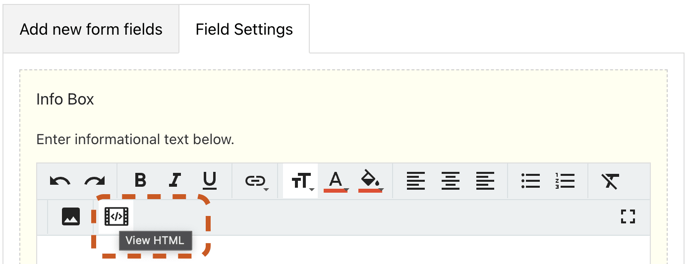
Delete the placeholder text and copy/paste the code below:
---
\ADD TITLE HERE\
---
### **STEP 2**
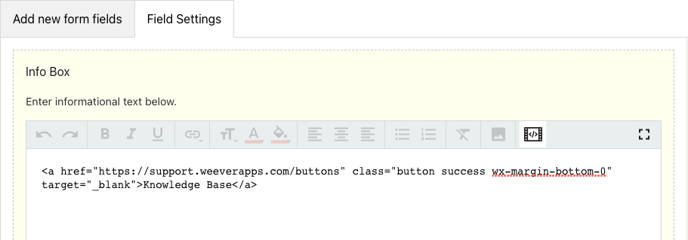
Replace the ADD LINK HERE text and with a URL (link) to the website or document you want to direct your button to.
Replace the ADD TITLE HERE text with a suitable NAME for your button.
For example, we're creating a "Knowledge Base" button linking to Weever's support page. See below:
### And that's it!
You can add as many buttons as you'd like, and you can link them to any URL you want.
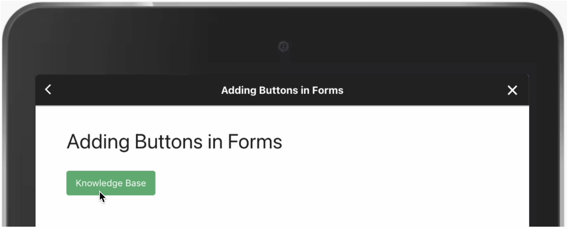
### Not quite clear? Here's a step by step guide:
### PRO TIP - How to change the colour of your button
You can change the colour of your button by updating the word "success" in the code.
---
\ADD TITLE HERE\
---
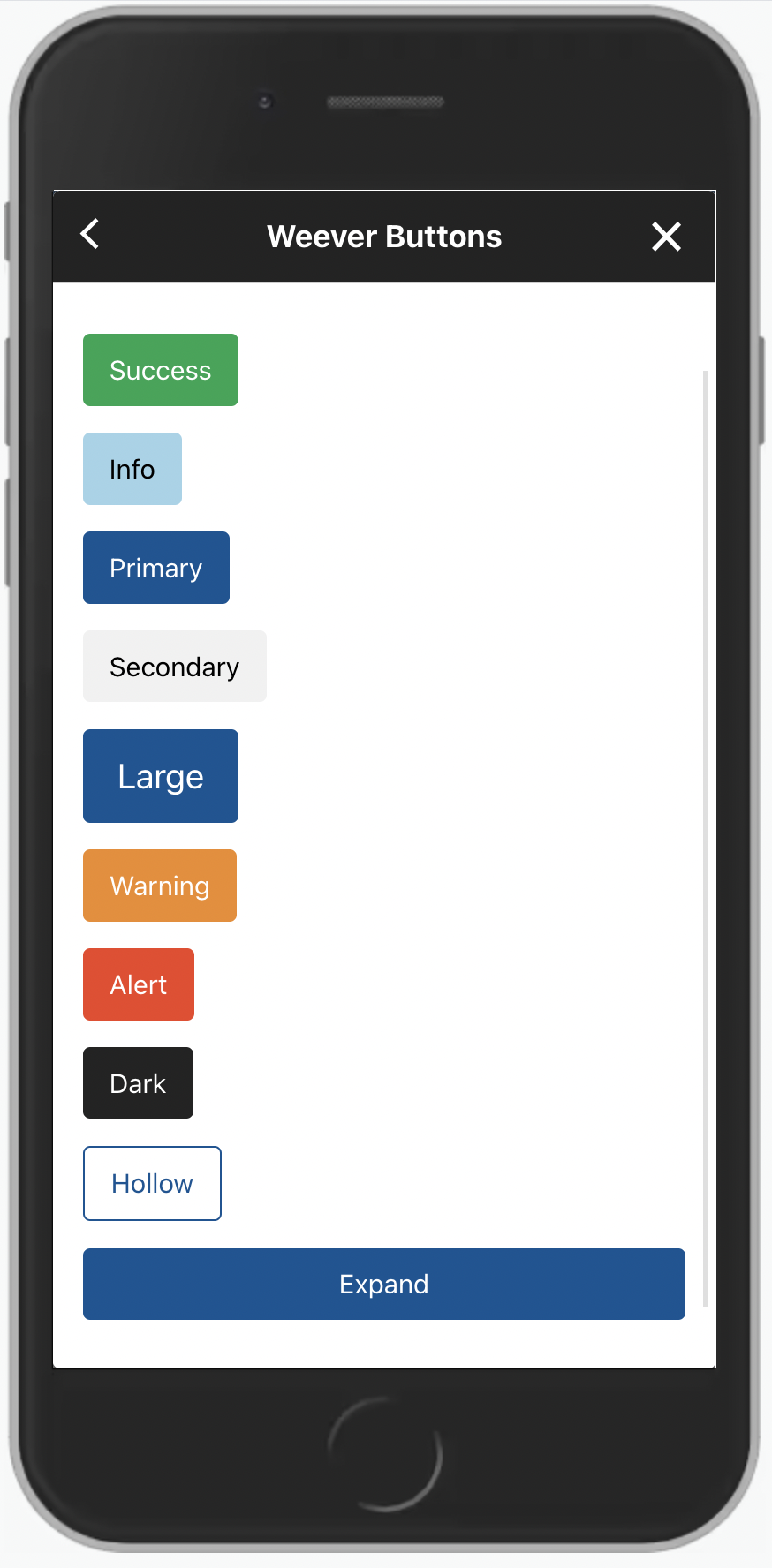
- Take a look at the picture on the left. The word "success" creates a green button, "info" creates a blue button, "primary" creates a navy button', "secondary" creates a grey button, "expand" makes the button fit the width of the screen and so on.
- Let's say we wanted to make our "Knowledge Base" button orange. We would replace the word "success" with the word "warning":
\ADD TITLE HERE\
And that's it! The button would now look like this:

**NOTE**
These colour codes (warning, primary, dark etc.) must be all in lower case in order for this to work.
[](https://weeverapps.com)
Weever Knowledge Base
Copyright © 2026, Weever
```json
{
"@context" : "https://schema.org",
"@type" : "VideoObject",
"contentUrl" : "https://5070354.fs1.hubspotusercontent-na1.net/hubfs/5070354/Untitled.mov",
"dateModified" : "2022-04-05T19:32:35.863Z",
"description" : "",
"duration" : "PT37S",
"height" : 1800,
"name" : "Untitled",
"thumbnailUrl" : "https://5070354.fs1.hubspotusercontent-na1.net/hubfs/5070354/Untitled.mov/medium.jpg",
"uploadDate" : "2022-04-01T09:21:30.310Z",
"width" : 2880
}
```