---
title: How can I auto close a Form using Form Field triggers?
description: Auto close your Form submission using the Multiple Choice or Pass Percentage form fields.
---
[Skip to content](https://support.weeversoftware.com/auto-close-field-trigger#main-content)
[Submit a Support Issue](https://support.weeversoftware.com/kb-tickets/new?hsLang=en)
[](http://weeversoftware.com/)
Open main navigation
Close main navigation
- [Submit a Support Issue](https://support.weeversoftware.com/kb-tickets/new)
How can we help you?
- There are no suggestions because the search field is empty.
1. [Weever Knowledge Base](https://support.weeversoftware.com/?hsLang=en)
2. [Weever Forms](https://support.weeversoftware.com/weever-forms?hsLang=en)
3. [Form Builder](https://support.weeversoftware.com/weever-forms?hsLang=en#form-builder)
# How can I auto close a Form using Form Field triggers?
## Auto close your Form submission using the Multiple Choice or Pass Percentage form fields.
---
Weever now offers the ability to auto close a workflow from the **Pass Percentage** and **Multiple Choice** fields.
Not to be confused with the '*Auto Close Workflow'* form field, these options reside inside the Pass Percentage and Multiple Choice fields as conditional logic.
- Able to have the Auto Close Workflow field present at the same time one or both of these triggers are in place. They work independently from each other.
- These closing comments now work after the first submission
- Does **not** affect Inspection status
### Initial Form Settings
Be sure to enable the workflow feature in your form in Form Settings
---
### How to setup the Fields
[Pass Percentage Field](https://support.weeversoftware.com/auto-close-field-trigger#pass-percent)
[Multiple Choice Field](https://support.weeversoftware.com/auto-close-field-trigger#multi-choice)
[Video Demonstration](https://support.weeversoftware.com/auto-close-field-trigger#video-demo)
#### Pass Percentage
**STEP 1: Add your Fields**
Add as many Pass/Fail fields as needed. Then add the Pass Percentage field.

**STEP 2: Set the Logic**
In the Pass Percentage field, check the option 'Add a trigger to update “Action Tracker ” workflows to a 'closed' status', then configure when you want to auto close the workflow.
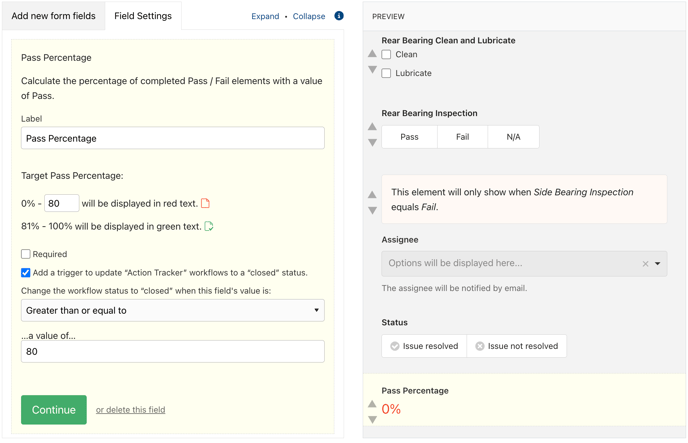
The submission can be saved and re-opened multiple times until the Pass Percentage value triggers the auto close.
---
#### Multiple Choice
**STEP 1: Add your Field**
Select the Multiple Choice field. Only one Multiple Choice field can be used to trigger the logic.
**STEP 2: Set the Logic**
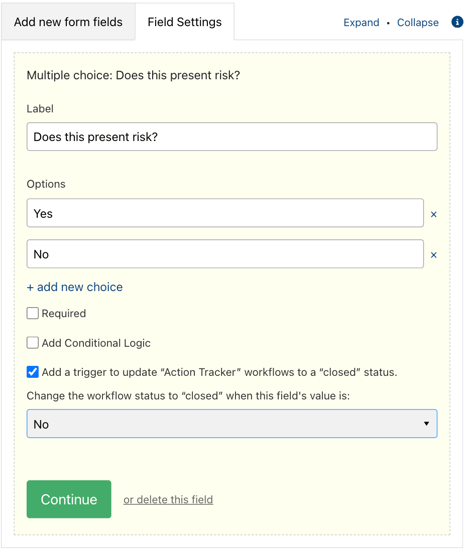
In the Multiple Choice field, check the option 'Add a trigger to update “Action Tracker ” workflows to a 'closed' status', then choose which value you want to close the workflow.
---
### Video Demonstration
[](https://weeverapps.com)
Weever Knowledge Base
Copyright © 2026, Weever
```json
{
"@context" : "https://schema.org",
"@type" : "VideoObject",
"contentUrl" : "https://5070354.fs1.hubspotusercontent-na1.net/hubfs/5070354/Auto%20Close%20Triggers.mp4",
"dateModified" : "2023-12-08T22:00:29.166Z",
"duration" : "PT3M25S",
"height" : 928,
"name" : "Auto Close Triggers",
"thumbnailUrl" : "https://5070354.fs1.hubspotusercontent-na1.net/hubfs/5070354/Auto%20Close%20Triggers.mp4/medium.jpg",
"uploadDate" : "2023-12-08T22:00:21.912Z",
"width" : 1908
}
```